Most WordPress maintenance problems do not begin with dramatic failures. They begin with small delays.
An update is postponed. A plugin is no longer used but remains active. A warning is ignored. A backup exists, but nobody has tested whether it restores properly. Over time, these small gaps create a site that becomes increasingly difficult to change with confidence.
A simple maintenance routine is one of the best ways to reduce that risk.
Maintenance is more than clicking “Update”
WordPress makes software updates easy, but the real objective is not to achieve a dashboard with zero notification badges.
The objective is to keep the site in a known, recoverable and supportable state.
That requires several habits working together.
1. Keep reliable backups
Before thinking about updates, make sure the site can be restored.
A useful backup strategy covers both files and the database. The right frequency depends on how often the site changes. A brochure website may tolerate a longer interval than an ecommerce site receiving orders throughout the day.
The most important question is not “Do we have backups?” It is “Have we confirmed that the recovery process works?”
An untested backup is only an assumption.
2. Use staging for meaningful changes
Small maintenance releases may be suitable for controlled automatic updates, depending on your environment. Major plugin updates, theme changes and WordPress releases deserve more deliberate testing when the site is business-critical.
A staging site gives you a place to verify:
- front-end layouts
- forms and submissions
- ecommerce workflows
- maps and interactive features
- user login
- admin editing
- scheduled jobs
- integrations
Staging should reflect production closely enough for the test to mean something.
3. Read changelogs selectively
You do not need to study every line of every release note, but major updates deserve attention.
Look for:
- database migrations
- removed or renamed settings
- minimum PHP or WordPress version changes
- deprecated features
- major library updates
- security fixes
- compatibility notes
The larger the functional change, the more important pre-production testing becomes.
4. Update in controlled groups
On complex sites, updating everything simultaneously can make troubleshooting harder. If a problem appears, you have many possible causes.
A controlled update process — especially on staging — makes regressions easier to isolate. Core, theme and plugin groups can be handled in a deliberate sequence appropriate to the site.
After each meaningful group, test the workflows that matter most.
5. Audit unused plugins
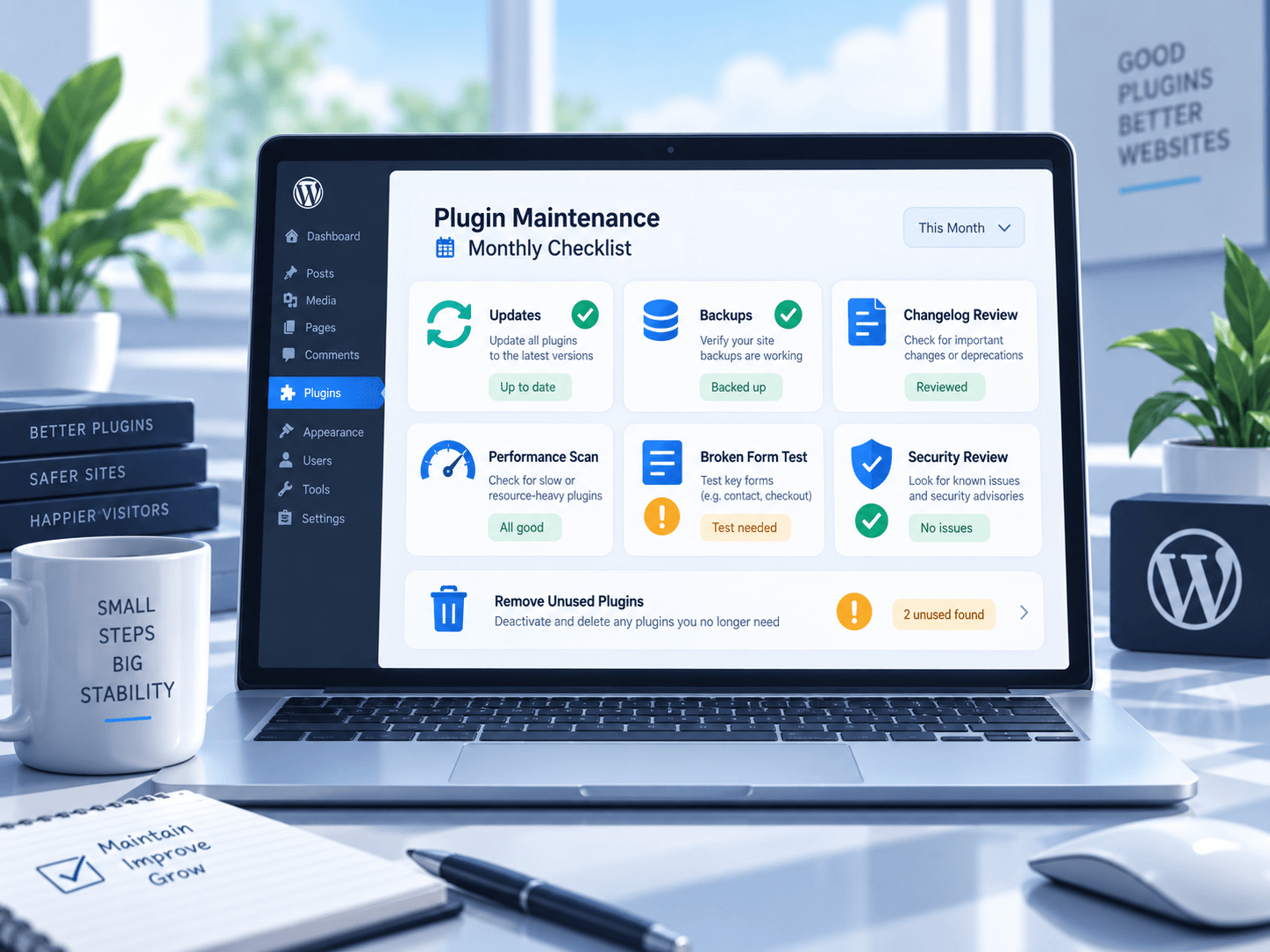
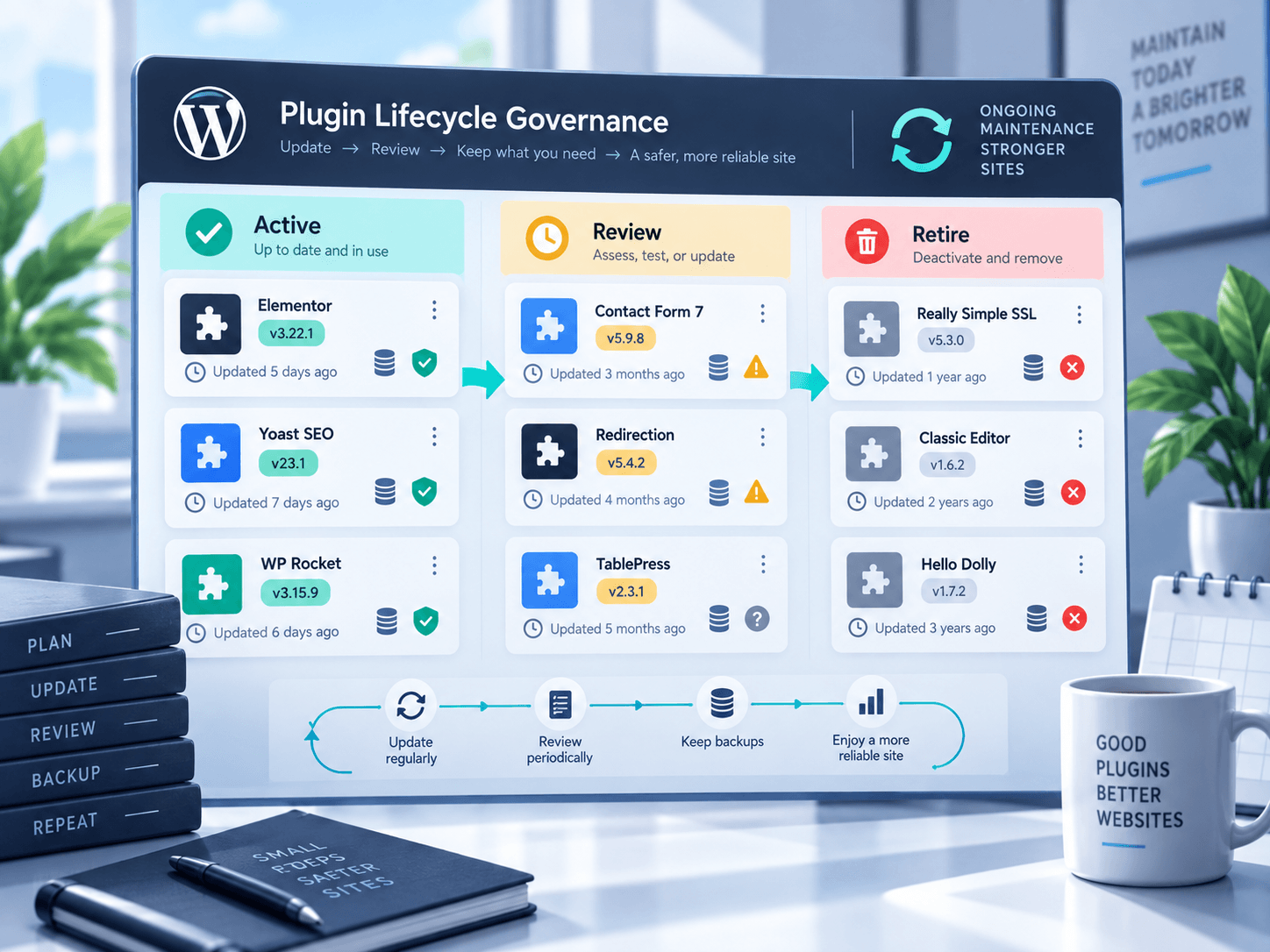
Once a month or quarter, review the plugin list.
Ask of each plugin:
- Is its feature still used?
- Is it active for a reason?
- Is there another plugin doing the same job?
- Is it still maintained?
- Is it part of a documented workflow?
Inactive plugins should not become permanent storage. If something is genuinely no longer required and its data-retention implications are understood, remove it.
6. Review admin users and roles
Plugin security does not exist separately from account security.
Remove accounts that are no longer needed. Make sure users have only the permissions required for their role. Review administrator access particularly carefully.
If a plugin exposes sensitive settings or data, test which roles can access them.
7. Watch for abnormal behavior
Maintenance is easier when you notice small problems early.
Pay attention to:
- sudden increases in page load time
- repeated PHP warnings
- failed scheduled actions
- large database growth
- unexplained admin notices
- broken outgoing email
- third-party API failures
- JavaScript errors on key pages
Monitoring does not need to become an enterprise project. Even a modest routine is better than waiting for users to report failures.
8. Check the critical paths
Every site has a small number of workflows that matter more than everything else.
For a business site, that might be contact forms and lead tracking. For ecommerce, checkout and payment. For a directory, search and location pages. For a membership site, registration and login.
Maintain a short regression checklist for these workflows. Run it after significant updates.
9. Document customizations
The most dangerous code on many WordPress sites is not a plugin from the directory. It is the snippet somebody added two years ago and forgot about.
Document custom CSS, PHP snippets, template overrides and integration code. Include why each customization exists and where it is managed.
That context is extremely valuable when something changes later.
10. Make maintenance ownership explicit
If everybody assumes somebody else handles updates, nobody really owns maintenance.
Whether the site belongs to an internal team, freelancer or agency, define responsibility for:
- backups
- updates
- staging tests
- incident response
- renewals and licenses
- plugin review
- documentation
Maintenance becomes much more predictable when ownership is clear.
A simple monthly rhythm
A practical routine might look like this:
Weekly: verify backups and critical-site health.
Monthly: update staging, review changelogs, test critical workflows, update production and audit warnings.
Quarterly: review plugins, users, custom code, integrations and performance trends.
The exact schedule is less important than consistency.
Reliability is built before the failure
WordPress is easy to extend, which makes it easy for a site to grow faster than its maintenance practices.
A disciplined routine keeps that growth manageable. You gain something more valuable than an updated plugin list: confidence that you can change the site and recover when something goes wrong.