

Documentation is often treated as the final stage of plugin development.
The feature is built. The interface is polished. The release is packaged. Then someone opens a blank document and starts writing instructions.
That sequence misses an important point: documentation is part of the user experience.
It influences whether users can install the product confidently, discover advanced features, recover from mistakes and solve problems without waiting for support.
Documentation begins with information architecture
A knowledge base is not simply a collection of articles.
Users need to understand where to start and how topics relate to one another.
A practical structure for a WordPress plugin might include:
- Getting Started
- Installation
- Configuration
- Core Features
- Common Workflows
- Advanced Usage
- Troubleshooting
- Developer Notes
- FAQ
The exact categories depend on the product. The principle is that navigation should mirror user intent rather than the internal structure of the codebase.
Write for tasks, not settings screens
Documentation that simply repeats labels from the UI is rarely enough.
A user does not usually think, “I would like to understand the Enable Radius Checkbox.”
They think, “How do I limit results to locations within 25 km?”
Task-oriented documentation begins with the outcome and explains which settings achieve it.
Good onboarding reduces support load
The first ten minutes with a plugin are disproportionately important.
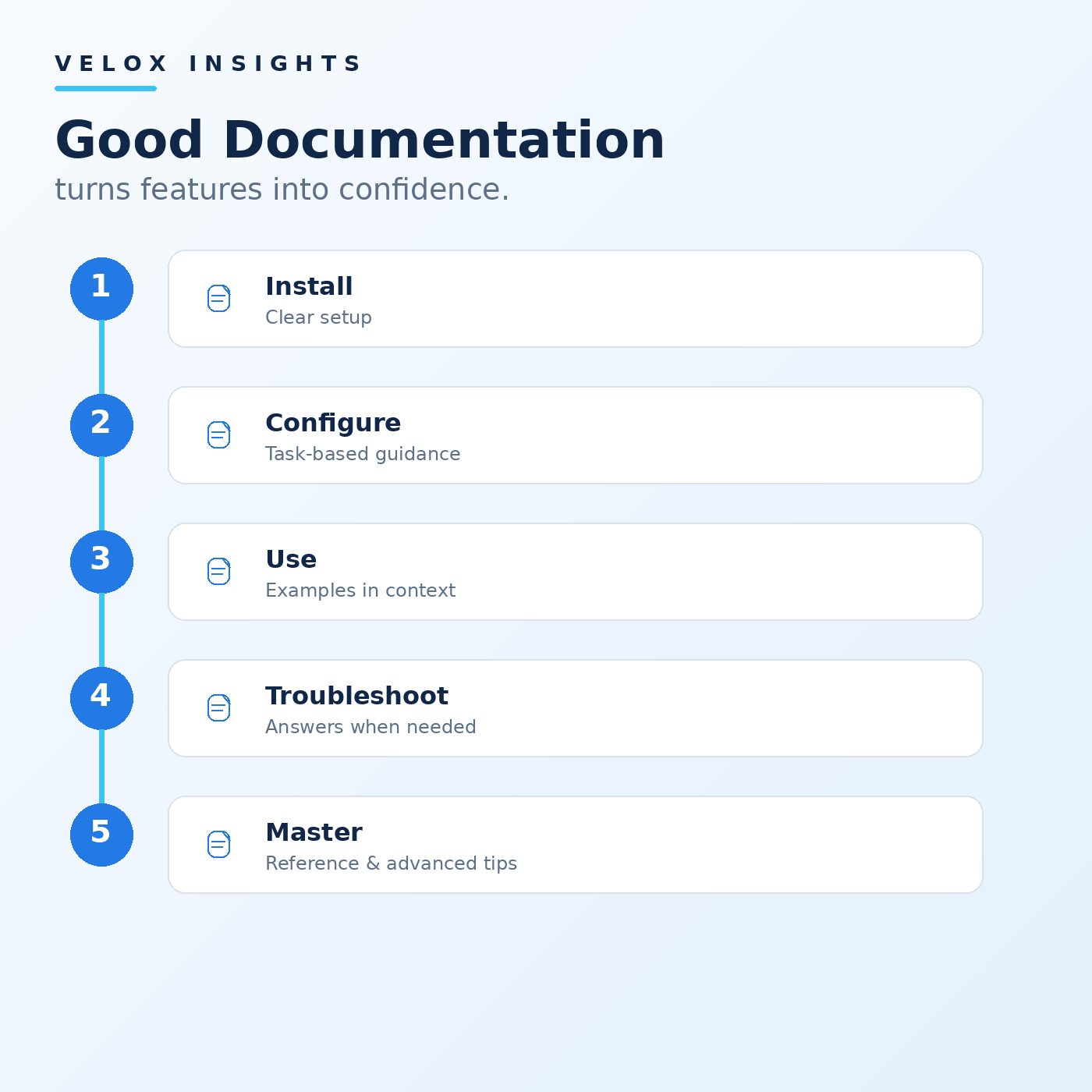
A clear setup guide should help users reach a successful result quickly. It should cover prerequisites, installation, first configuration and the most common next step.
Do not overload new users with every advanced option immediately.
Success first; depth second.
Screenshots need maintenance too
Visual documentation is extremely useful for plugin interfaces, but screenshots can become stale quickly.
If a settings screen changes, an old screenshot may create more confusion than no screenshot at all.
Use visuals where they clarify interaction, and include documentation review in the release process whenever UI changes significantly.
Troubleshooting articles should be diagnostic
A useful troubleshooting article does not merely list generic advice.
It helps users identify the layer involved.
For example, a map that does not appear could involve:
- a missing API configuration
- JavaScript errors
- blocked external requests
- an invalid shortcode or block setting
- CSS hiding the container
- a theme or plugin conflict
Good troubleshooting content gives users a sequence of checks and explains what each result means.
Error messages should link to relevant help
Documentation becomes much more effective when the product connects users to it contextually.
An error about an API key can link directly to the API configuration article rather than the general documentation homepage. A setting can offer a concise explanation and a “Learn more” link to a deeper article.
This reduces search effort at the exact moment the user needs help.
Article hierarchy matters for accessibility and scanning
Documentation pages are often long and technical.
Use a logical heading structure, short paragraphs, clear lists and descriptive link text. Readers should be able to scan the page and understand its shape before reading every detail.
Code examples should be distinguishable and copyable. Warnings should not rely on color alone.
Good technical writing and good accessibility frequently reinforce each other.
Version-sensitive information should be labeled
Plugins evolve.
If a workflow changed significantly in a particular release, state which versions the article applies to. Remove or archive obsolete instructions rather than allowing conflicting guidance to accumulate.
A knowledge base should represent the current product unless it is explicitly preserving historical documentation.
Search is useful, but navigation still matters
Search helps users who know what they are looking for. Navigation helps users who do not know the terminology yet.
A well-designed documentation system supports both.
Breadcrumbs, categories, related articles and next/previous navigation can help users build a mental model of the product.
Documentation feeds better support
When support does need to intervene, good documentation makes responses faster and more consistent.
Support can link to a maintained procedure rather than rewriting the same instructions repeatedly. If a question appears frequently, that is evidence the relevant article or interface may need improvement.
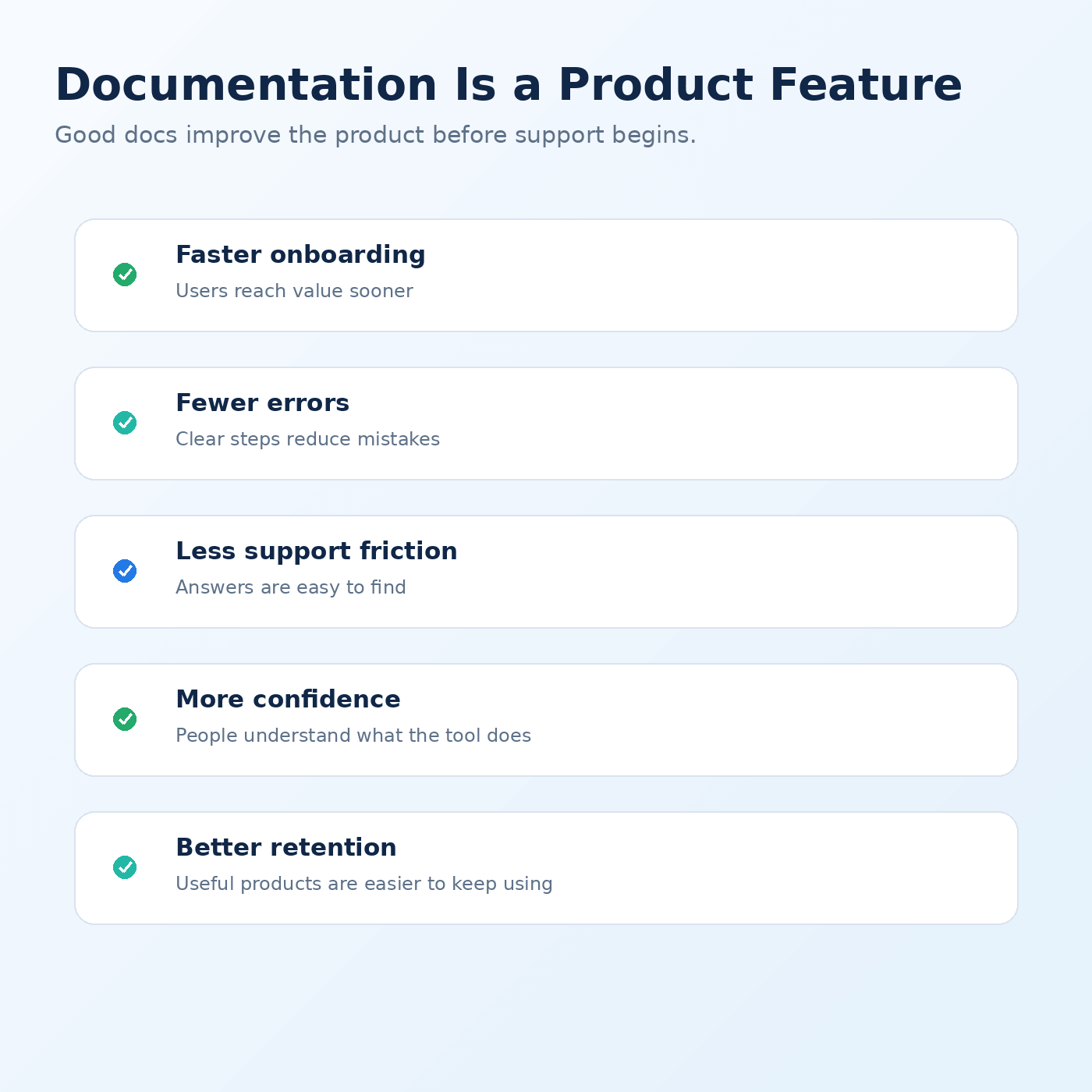
Documentation becomes a feedback system for product design.
Treat docs as part of release readiness
A feature is not fully ready when only its developer knows how it works.
Before release, ask:
- Can a new user configure it?
- Is the terminology explained?
- Are edge cases documented?
- Is there a troubleshooting path?
- Have screenshots been updated?
- Are developer-facing details available where appropriate?
Documentation quality is one of the clearest signals that a plugin is intended to be maintained rather than merely shipped.
The best documentation creates confidence
Users do not need a manual for every click. They need confidence that when they encounter a question, the answer exists and is easy to find.
That confidence is part of the product.