

Installing a WordPress plugin takes seconds. Living with the consequences can last for years.
Plugins become part of a site’s technical foundation. They can affect performance, security, content structure, database storage, editor workflows and future migration options. That makes plugin selection an architectural decision, even when the feature itself seems small.
Before clicking Install Now, run through these ten questions.
1. Do I actually need a plugin for this?
Not every change requires one.
A simple CSS adjustment may belong in your child theme or a managed custom-code tool. A one-off content layout may be achievable with native blocks or patterns. On the other hand, complex functionality such as forms, maps, structured data or recurring automation usually deserves a proper plugin.
Choose the right layer for the job.
2. Is the plugin actively maintained?
Look beyond the marketing page.
Check when it was last updated, whether support questions receive responses and whether recent WordPress versions are being tested. An older update date is not automatically bad for a mature, stable plugin, but prolonged silence combined with unresolved compatibility issues is a warning sign.
Maintenance matters because WordPress, PHP and browser behavior continue to evolve.
3. Is the feature set focused or excessive?
A plugin that solves exactly your problem can be easier to understand and maintain than a suite containing dozens of unrelated modules.
That does not make large plugins inherently bad. Sometimes an integrated suite is exactly what a project needs. The important question is whether you are accepting significant complexity for functionality you will never use.
If you need one feature, compare a focused option with the broader alternatives.
4. What does it load on the front end?
After testing the plugin on a staging site, inspect the pages where its feature is not used.
Does it still add large JavaScript libraries or stylesheets everywhere? Does it make external requests? Does it add fonts, trackers or dependencies without a clear reason?
Conditional asset loading is one sign of thoughtful development.
5. How does it store my data?
This is particularly important for plugins that manage business-critical information such as forms, locations, memberships, orders or custom content.
Ask:
- Is data stored using normal WordPress structures or custom tables?
- Is there an export option?
- What happens when the plugin is deactivated?
- What happens when it is deleted?
- Can the data be migrated later?
You should know whether leaving a plugin also means losing access to your information.
6. Does it respect the WordPress admin experience?
A plugin should help you complete a task, not turn the dashboard into an advertising surface.
Watch for excessive notices, unrelated menu items, upsell banners on every screen or custom interfaces that ignore familiar WordPress interaction patterns.
A clear, restrained admin experience often reflects broader product discipline.
7. What permissions does it require?
Some plugins genuinely need powerful capabilities. Others may grant access too broadly.
If your site has editors, authors, shop managers or custom user roles, test who can view and change the plugin’s settings. Principle-of-least-privilege thinking is especially important on multi-user websites.
8. What happens during updates?
Read recent changelogs. They reveal more than feature lists do.
Good changelogs help you see whether the developer fixes bugs, responds to compatibility changes and communicates breaking changes. If a plugin manages important data, test major updates on staging before applying them to production.
Automatic updates are useful, but they are not a substitute for backups and recovery planning.
9. Can I get support and documentation?
Even simple plugins benefit from clear documentation.
Look for installation guidance, common troubleshooting steps, configuration explanations and examples. If the plugin has advanced features, documentation should make those features discoverable without requiring users to reverse-engineer the interface.
Good documentation reduces dependency on support.
10. Does the plugin’s philosophy match the project?
This final question is easy to overlook.
Some projects value minimal dependencies and native WordPress patterns. Others prioritize rapid delivery and prefer integrated platforms. Some sites need strict accessibility, multilingual compatibility or enterprise governance.
The best plugin is not always the one with the longest feature list. It is the one that fits the way your site is meant to operate.
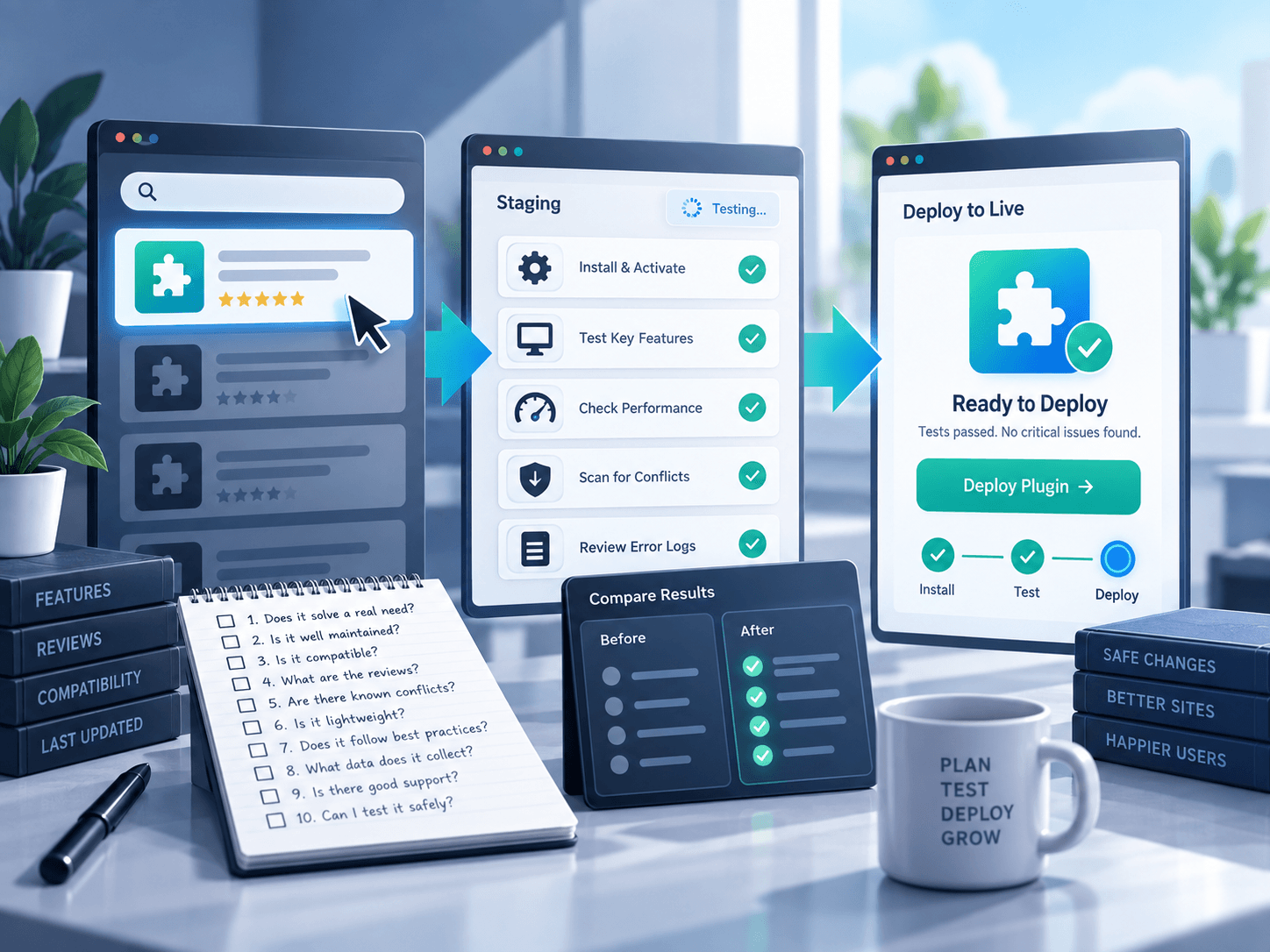
Test first whenever possible
For important sites, evaluate plugins on staging before production. Test the full workflow, not just the settings screen.
Create content. Edit it. Delete it. Test responsive behavior. Check user roles. Measure front-end impact. Confirm that uninstall behavior is sensible. Try the feature alongside the theme and major plugins already in use.
Five minutes of selection research and fifteen minutes of staging validation can prevent a much larger cleanup later.
The takeaway
WordPress makes installation deliberately easy. Your selection process should still be deliberate.
Treat every new plugin as a long-term dependency until proven otherwise. If it solves a real problem, behaves responsibly and fits your site’s architecture, install it with confidence.
If it does not, keep looking.